
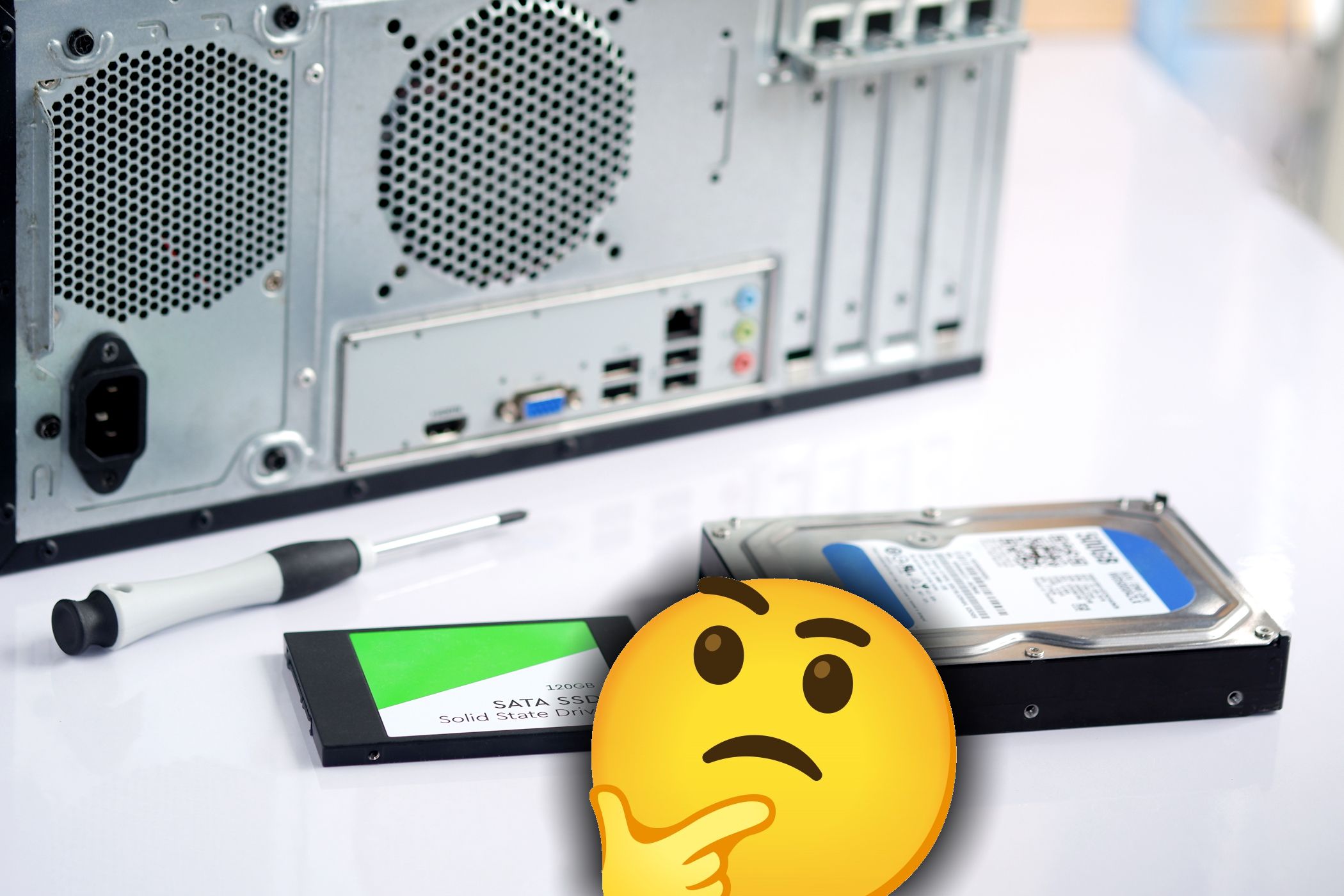
Which Storage Device Should You Choose?
Quick Links
Key Takeaways
- SSDs are faster than HDDs and can expedite things like file transfers and booting your computer.
- HDDs are cheaper for storage but more vulnerable to damage due to their moving components.
- SSDs offer increased energy efficiency, while HDDs offer better data recovery and have a lower cost per GB.
If you want to purchase a new computer or upgrade your existing machine, you’re probably weighing up SSDs and HDDs. So, what is the difference between SSDs and HDDs, and which is better? Here’s what you need to know.
What’s the Difference Between an SSD and an HDD?
The difference between HDDs and SSDs is simple: Hard Disk Drives (HDDs) store data on a magnetic disk, while Solid State Drives (SSDs) store data in electronic “flash memory.” Because of how different the two storage implementations are, HDDs and SDDs have some major differences:
- SSDs are much faster at reading/writing files than HDDs.
- HDDs are easier to damage than SSDs.
- More storage space is cheaper on HDDs than SSDs.
- It’s easier to recover data from HDDs than SSDs.
What Is an SSD?
Solid State Drives (SSDs) use NAND flash memory chips and are often smaller than HDDs. Like HDDs, SSDs come with SATA III ports and can easily be installed in the same system. SSDs also have PCIe connections, which can be linked directly to the motherboard and offer significantly faster data transfer speeds.
|
SSD Averages |
|
|---|---|
|
Speed |
SSDs have average read/write speeds of around 500MB/s. Older SSDs might have read/write speeds as low as 200MB/s, while a high-end M.2 SSD might reach up to 7000MB/s. Reading is faster than writing, and any SSD will be faster over PCIe. |
|
Durability |
SSDs have an estimated lifespan of 10 years. They’re highly shock-resistant and can be reliably stored long-term. |
|
Storage |
Consumer-oriented SSDs can be found in sizes as large as 30TB. Enterprise server SSDs can be 100TB or larger. |
|
Cost |
Storage space on SSDs is more expensive than HDDs. The average cost is between 5 and 10 cents per GB. |
|
Type of User |
SSDs are ideal for gamers, video editors, and others who require fast loading. SSDs aren’t recommended for situations where data recovery is essential. |
|
Noisiness |
SSDs are completely silent because they lack moving parts. You may hear a quiet buzzing if C-States are enabled. |
|
Installation |
Installing an SSD is simple. It can be inserted directly to replace an HDD. If you want to use PCIe, you will need to connect directly to the motherboard. |
|
Power Consumption |
SSDs are more power efficient than SSDs because they lack moving parts. |
|
Maintenance |
SSDs are relatively low-maintenance but must remain under 15% of their total capacity to function properly. |
What Is an HDD?

Hard Disk Drives (HDDs) store and access data by spinning a magnetic disc (known as the platter) and a mechanical read/write arm. Most HDDs use a SATA connection, and modern HDDs use SATA III. HDDs are highly affordable, and premium HDDs with several TB capacities are readily available.
|
HDD Averages |
|
|---|---|
|
Speed |
The average HDD has a read/write speed between 80MB/s and 200MB/s, but higher- and lower-quality HDDs may have different transfer rates. The fastest HDDs can offer rates as high as 500MB/s. |
|
Durability |
HDDs aren’t very shock-resistant because the read/write arm and the platter are susceptible to damage. They last for 3 to 5 years on average but may last longer when stored as long as the HDD is used at least once every few months. |
|
Storage |
1TB HDDs are readily available and affordable. Industry-leading HDDs offer capacities as high as 30TB. |
|
Cost |
Storage space is extremely affordable with HDDs, with drives frequently costing a cent or less per GB. |
|
Type of User |
HDDs are ideal for the data-prioritizing user who wants to maximize space, minimize costs, and avoid data loss. |
|
Noisiness |
HDDs generally emit a quiet hum. Old hard drives may become louder, and failing HDDs may begin to make grinding and scratching noises. |
|
Installation |
Installing HDDs is a simple process that involves inserting the drive into a bay and connecting the proper SATA cable. |
|
Power Consumption |
HDDs aren’t as power-efficient as SSDs because of the energy used by their moving internal parts. |
|
Maintenance |
HDDs require minimal maintenance beyond defragging and firmware updates. |
Speed
SSDs are generally four times faster than HDDs in terms of both read and write speed, but performance varies by the drives you’re comparing. You can exponentially increase your data transfer rate using PCIe rather than SATA as your SSD interface. Speeds vary by drive, but some performance speeds you might see with mid-range SSDs and HDDs include:
|
SSD with PCIe (3.0) |
SSD with SATA (3.0) |
HDD |
|
|---|---|---|---|
|
Read Speed |
2500 – 3000 MB/s, theoretical limit of 3500MB/s |
300 – 550 MB/s, theoretical limit of 600MB/s |
80 – 200 MB/s, theoretical limit of 600MB/s |
|
Write Speed |
2200 – 2700 MB/s |
300 – 500 MB/s |
80 – 160 MB/s |
Durability

SSDs and HDDs both have durability advantages, so which storage solution you should choose depends on what risks you consider most important to minimize.
|
Average Lifespan |
What Causes Aging |
Shock Resistance |
Data Recovery |
|
|---|---|---|---|---|
|
SSDs |
5 to 10 years |
Erasing and writing. SSDs have an inherent terabytes written over time (TBW) limit. |
High. |
Less likely to corrupt. |
|
HDDs |
3 to 5 years |
Motor bearings or other internal components may fail. HDDs may also fail if they are not booted every few months. |
Low. Any impacts may damage the mechanical components inside. |
Easier to recover data from. |
Storage Capacity
SSDs are the clear winner for people who need to use or transfer large files regularly, but HDDs offer some advantages for file storage.
|
Capacity |
File Transfers |
Limitations |
|
|---|---|---|---|
|
SSDs |
Consumer SSDs can be as large as 30TB. |
Fast with PCIe. |
Should be kept at least 15% under capacity for performance. |
|
HDDs |
Consumer HDDs can be as large as 22TB. |
Slow. |
Some empty space is recommended to allow defragging. |
Cost
Although SSDs are usually considered the expensive option, either can be affordable — it just depends on what you’re measuring the price against. Fast booting is cheaper with SSDs, for example. Here are some examples of what you can expect while shopping:
Types of User
If you’re still torn between SSDs and HDDs, consider your type of user. If you work with video content or play video games, SSDs are the universal winner—their read/write speeds can’t be beat. However, HDDs are best for budget users and anyone who stores large amounts of files.
Noisiness
SSDs are far quieter than HDDs, thanks to their use of electronic storage rather than a spinning disk. They’re perfect for people like musicians, voice actors, and anyone else who needs to minimize noise. HDDs are louder, producing an average of 20-40 dBA of noise while in use.
Installation
SSDs and HDDs can be installed in standard drive bays using SATA or PCIe. Even if you’ve never opened a computer, installing a hard drive is simple when you use the right video to guide you.
Power Consumption
SSDs and HDDs don’t use enough power to make a big difference in your energy bill, but you might need to consider their power consumption if you don’t want to overwhelm your PSU. Here’s what kind of power consumption you can expect from the average HDD and SSD:
|
Running |
On Startup |
|
|---|---|---|
|
SSD |
0.1-4W |
0.1-4W |
|
HDD |
4-9W |
20-25W |
Maintenance
SSDs and HDDs are both easy to maintain, but each requires a few different steps for ideal care. Here’s what you should keep in mind for either device:
|
SSDs |
HDDs |
|---|---|
|
HDDs and SSDs are the primary storage devices for most computers, and the option you choose really comes down to what you’re storing, how long you want to store it for, and most importantly, how much you want to spend. The price of storage continues to decrease, giving us more options than ever—which is vital, considering how much data we now all produce and need to keep track of.