
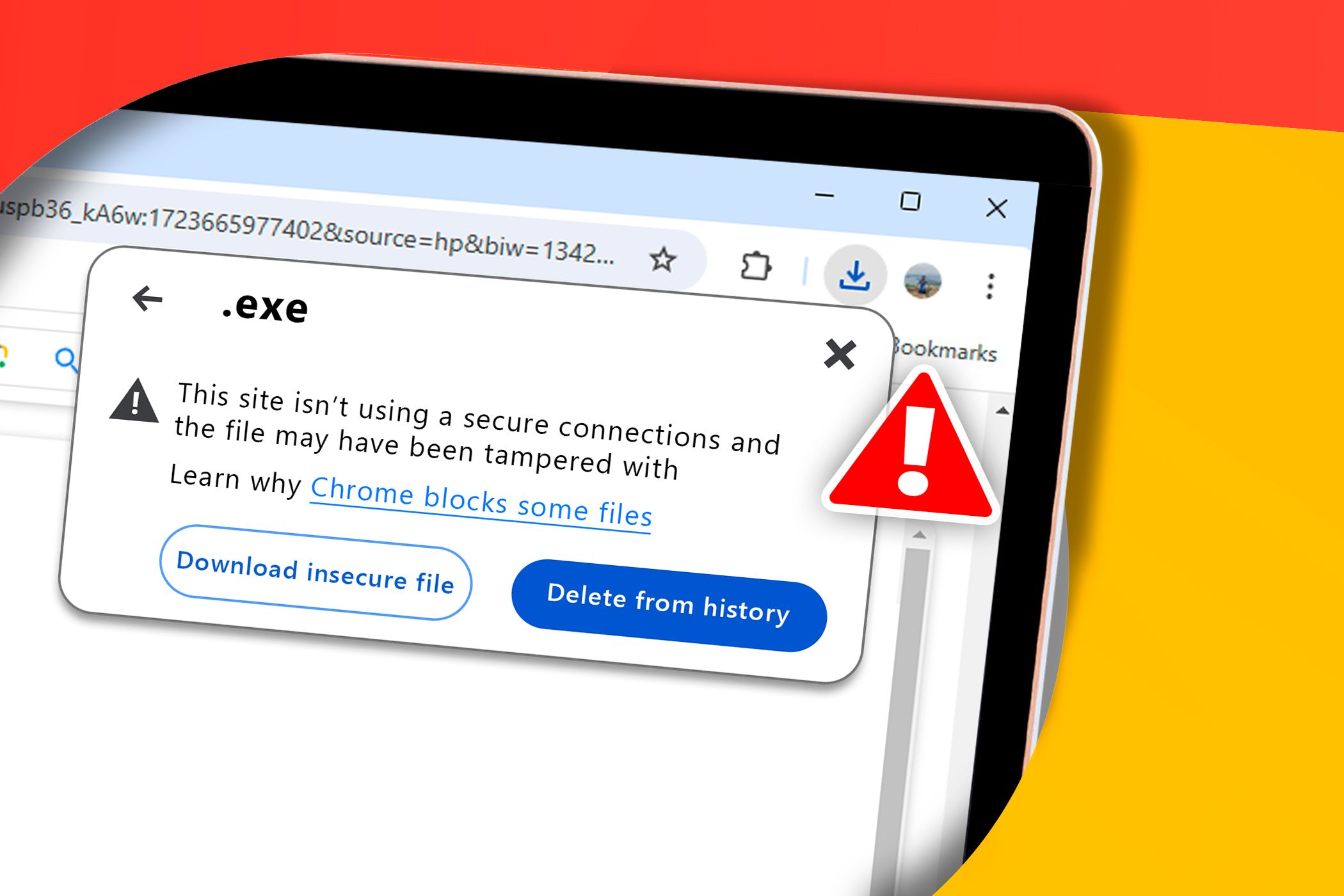
How to Fix Chrome’s “Insecure Download Blocked” Warning
Key Takeaways
- Before bypassing Chrome’s “Insecure Download Blocked” warning, verify the file’s legitimacy by checking the official source and site details.
- Temporarily disable Chrome’s “Safe Browsing” feature to bypass the warning, but remember to re-enable the feature afterwards.
- To avoid issues caused by browser extensions, download files in Incognito Mode with Safe Browsing turned off.
Chrome’s “Insecure Download Blocked” warning is meant to protect you, but it can also disrupt legitimate downloads. In this guide, we help you safely bypass this feature and access the files you need without compromising your online security.
Temporarily Disable the Chrome “Safe Browsing” Feature
Before bypassing Chrome’s “Insecure Download Blocked” warning, check a few things before downloading your files, such as the official source, the site’s domain age, and more.
If you’re confident the file is legitimate, you can temporarily disable Chrome’s “Safe Browsing” feature to bypass the warning.
Here are the steps to disable Safe Browsing:
- Open Chrome and click the menu icon (the three dots in the upper right corner).
- Navigate to Settings > Privacy and security, and then select Security in the middle pane.
- Select No protection from the Safe Browsing options and click the Turn off button on the pop-up screen.
Remember to make your browsing safer by turning “Safe Browsing” back on after your download is complete.
Download via Incognito Mode (With Safe Browsing Turned Off)
Sometimes, the “Insecure Download Blocked” warning may be caused by extensions, particularly security plugins. To tackle this issue, download your files in Incognito Mode. That’s because extensions are disabled in this mode, unless explicitly allowed.
Here’s how to download your files via Incognito Mode:
- Open Google Chrome and click the menu icon (the three dots).
- Select New Incognito Window.

From there, navigate to the target link and attempt the download. While you’re at it, remember that you still need to turn off Safe Browsing while in Incognito Mode.
Now, you might be wondering why Chrome blocks your downloads in the first place. In the past, this was somewhat unclear. But according to a report from The Verge, Chrome’s recent updates provide more detailed warnings for suspicious downloads, which can help you make informed decisions.
When you encounter these warnings, Chrome offers clearer explanations and may ask to scan password-protected files for malware. If you enable Enhanced Protection, your files will be scanned in the cloud. This significantly increases the likelihood of detecting threats.
For more information on why your downloads might be blocked, refer to this Chrome support article. But if you’re confident the file is safe, you can prevent its download from being blocked by using one of these two methods.