
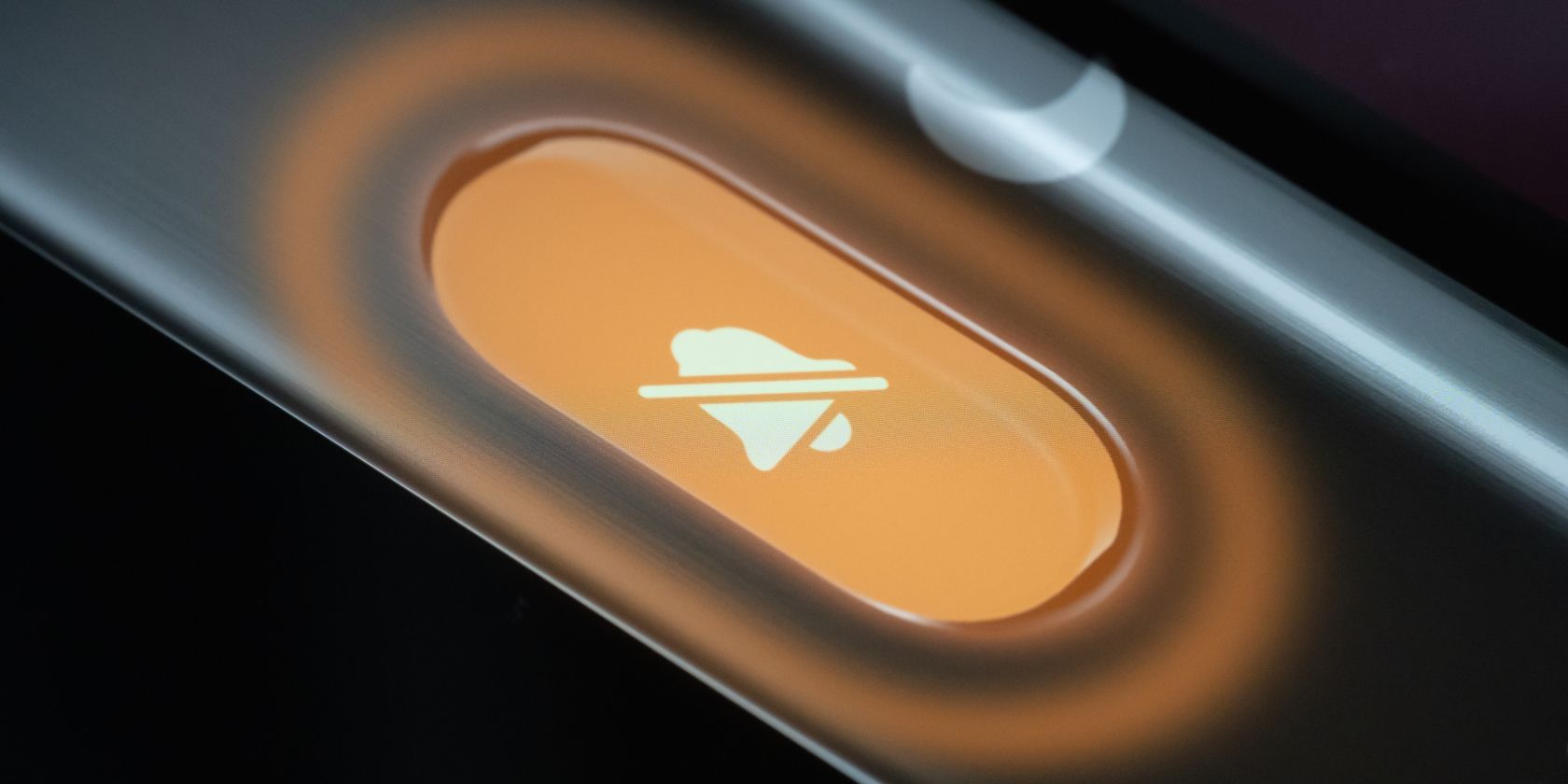
How to Turn Off Vibration on Your iPhone
Although you don’t have to worry about notification sounds when you put your iPhone in Silent mode, it will still vibrate whenever you get an alert. And that’s not everyone’s cup of tea. We’ll show you how to turn off vibrations entirely for certain apps and specific alerts.
How to Turn Off Vibrations for Calls and Alerts on an iPhone
If you’d prefer not to have your iPhone vibrate for incoming calls or alerts, you can disable this feature by following these steps:
- Go to the Settings app on your iPhone and select Sound & Haptics.
- Tap Haptics under the Ringtone and Alerts section.
- Select Don’t Play in Silent Mode or Never Play depending on your preference. For instance, if you don’t like vibrations when using your iPhone’s Silent mode, choose Don’t Play in Silent Mode.
- Return to the previous menu and select one of the alert types, like Ringtone, New Mail, Default Alerts, etc. Tap Haptics at the top and choose None.
How to Turn Off All Vibrations on an iPhone
While the method above disables most vibrations, your iPhone will still vibrate if you receive an emergency alert. If you’d like to turn off all vibrations on your iPhone, you can do so through your iPhone’s Accessibility settings. All you need to do is go to Settings > Accessibility > Touch. Now, scroll down and toggle off the switch next to Vibration.
You may have noticed how your iPhone vibrates slightly whenever you perform actions like toggling on a switch or long-pressing on a button in your iPhone’s Control Center or when you’re typing on your iPhone’s keyboard. These are called System Haptics and Keyboard Feedback. When you turn off all vibrations on your iPhone, you’ll also disable these features.
However, you can disable them without affecting all your apps by heading to Settings > Sound and Haptics and toggling off the switch next to System Haptics.
Similarly, tap Keyboard Feedback and toggle off the switch next to Haptics.

How to Turn Off Vibrations for Certain Apps
Instead of turning off vibrations for texts you receive or for all your apps, you may often want your iPhone to stop vibrating every time you get a notification from a third-party messaging or social media app like WhatsApp. The only way to turn off vibrations for specific apps is to adjust the app’s notification settings. Here’s what you need to do:
- Head to Settings and go to Notifications.
- Select the app you’d like to turn off vibrations for.
- Toggle off the switch next to Sounds.
While your iPhone will no longer vibrate when you receive notifications from the app, there is a catch: you’ll no longer hear a ping when you get a notification, even when your ringer is switched on. This is because this method essentially stops audio alerts. So, unless you’re looking to silence notifications on your iPhone, there’s currently no way to turn off vibrations for specific apps without sacrificing audio alerts.