

How to Use BCC in Outlook (and What Happens When You Do)
Key Takeaways
- BCC in Outlook hides recipients’ email addresses, making it useful for sending personalized mass emails.
- You can enable the BCC feature in Outlook settings and easily add BCC recipients to new emails.
- When using BCC, recipients receive the email normally but cannot see other BCC’d recipients or include them in their replies.
Learn how to use the BCC feature in Outlook. We’ll walk you through the steps to add BCC in Outlook for both mobile and desktop. You will also learn what happens when you use BCC in Outlook.
What Does BCC in Email Mean?
BCC stands for “Blind Carbon Copy”. The main difference, compared to carbon copy (CC) emails, is that while other recipients can see a CC’d person’s email address, they cannot see the email addresses of BCC’d users.
BCC is a useful feature to use if you want to email multiple people but still make it look personalized. For example, you may wish to send a company-wide email at your job but do not want dozens (or hundreds) of recipients to appear in the list of CC’d recipients.
You may also want to add BCC in Outlook (and any other email providers you use) if you’d like other people’s email addresses to remain private. This situation may arise if you’re sending messages to multiple friends who aren’t part of the same friendship group, for example.
Another possible scenario when this could occur is if you want to make a big announcement (e.g., an engagement party). If you mainly use Outlook for work, make sure that you don’t make these common mistakes to avoid in your work emails.
How to Use BCC in Outlook on Your Computer
When learning how to BCC in Outlook on your computer, it’s worth looking at how to do so on both the desktop and web apps. In the following subsections, you can find the specific steps required for each of these.
How to Use BCC in Outlook on the Web App
Before using BCC in Outlook, it’s a good idea to ensure that the feature is always visible. You can change this in your settings:
- Click on the settings icon in the top right-hand corner, which resembles a cog wheel.
- Select Email > Compose and reply. Under Message format, tick the box next to Always show Bcc.

- Click the X button to close the window and save your changes.

Once your settings have been saved, follow these instructions to use the BCC feature in your messages.
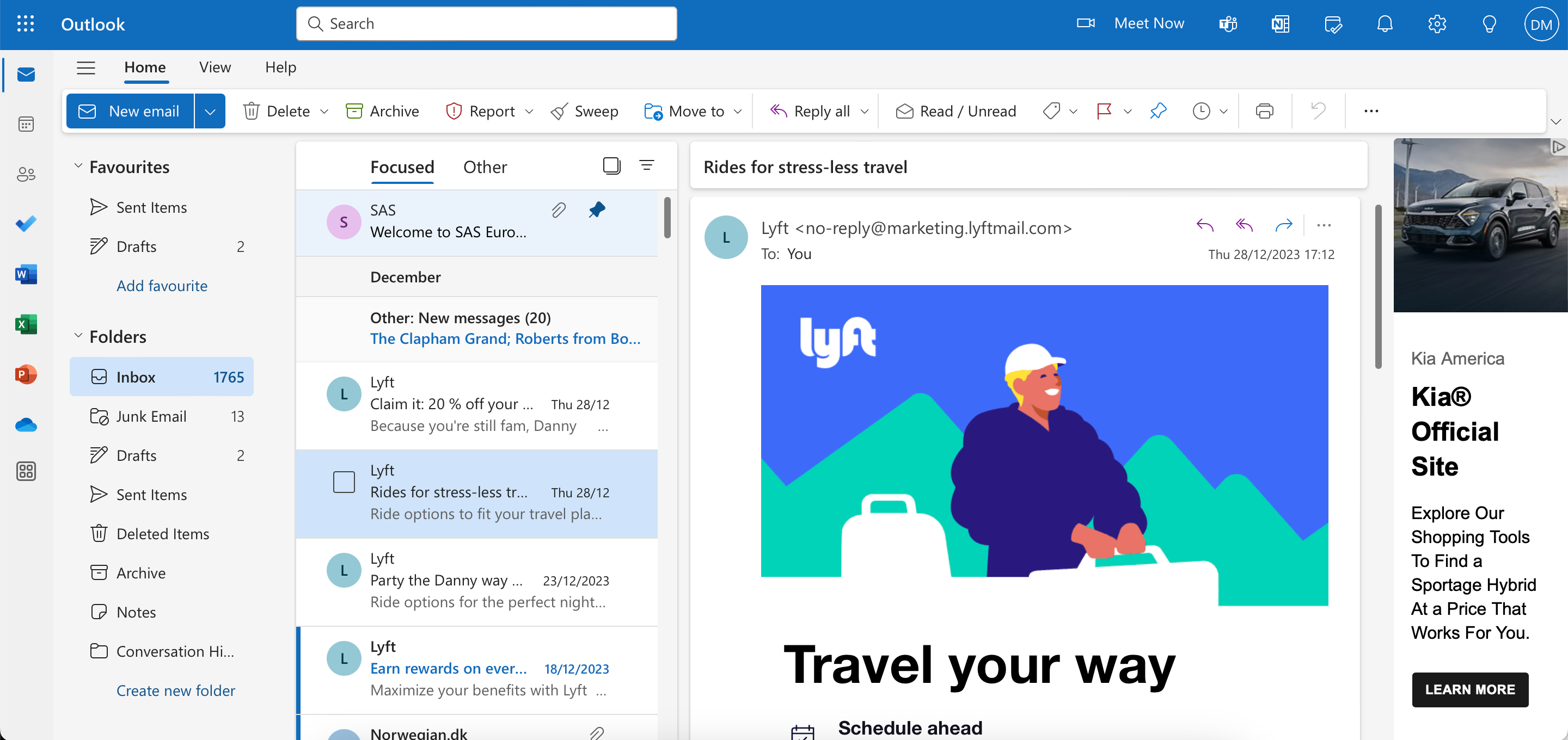
- Select New email.
- Add the contacts you want to BCC in the Bcc section, before adding the other recipients and email content/subject.
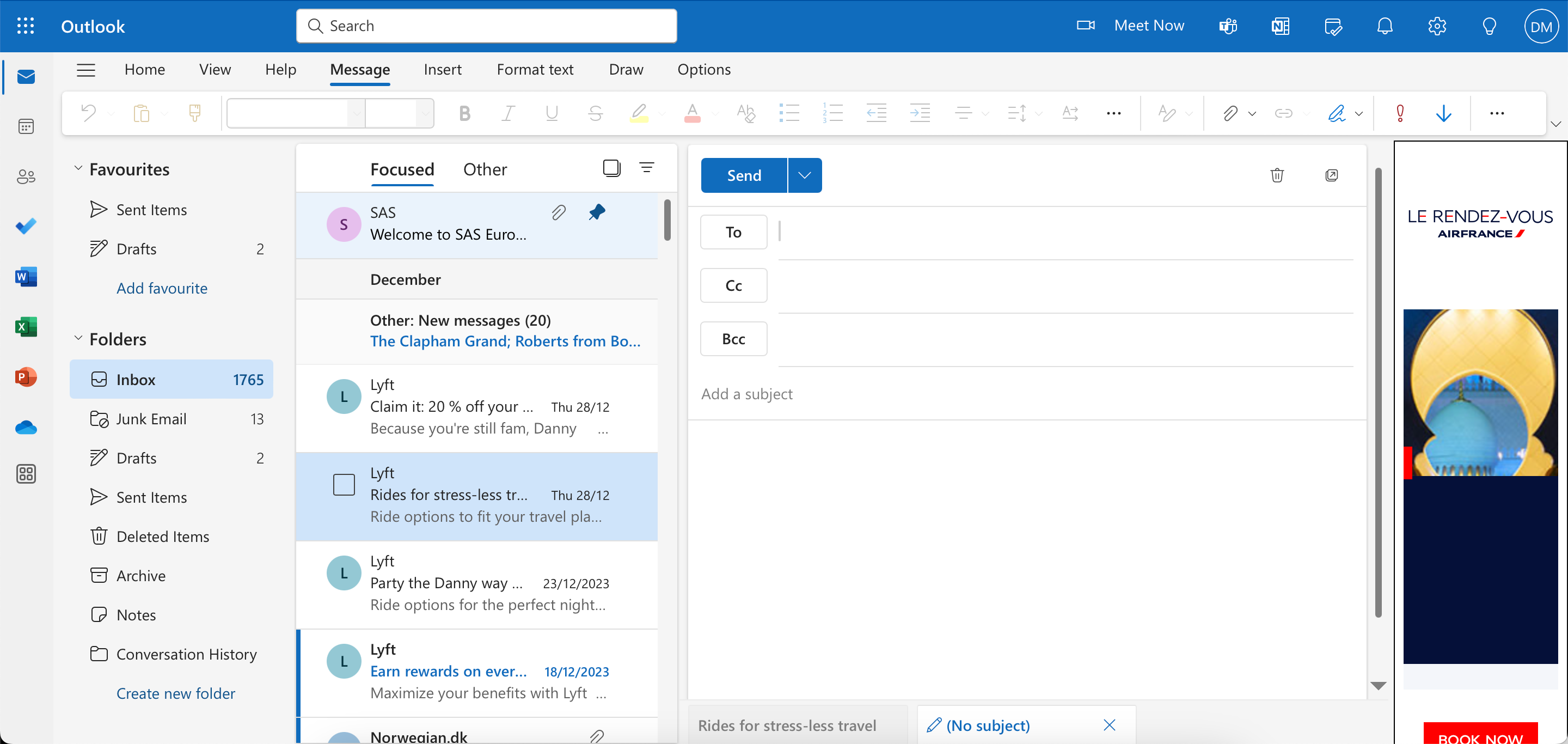
- When you’re ready to share your email with others, tap Send.


How to Use BCC in the Outlook Desktop App
To add BCC in Outlook on your desktop, the steps to show BCC are slightly different on Windows and macOS. Let’s start with the steps for your Mac:
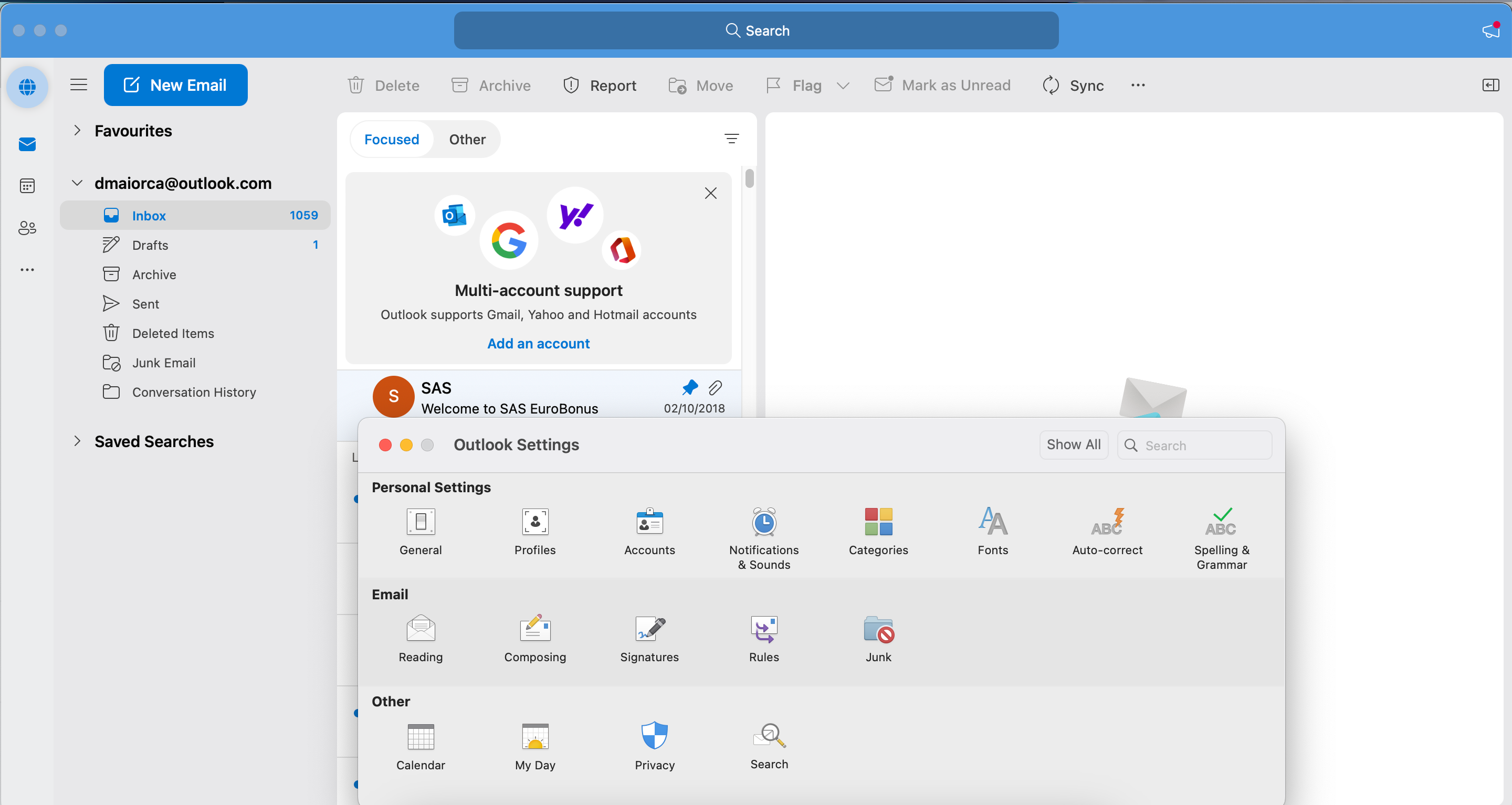
- Go to Outlook > Settings.
- Select Composing, which is in the Email section.
- Tick the box next to Show BCC field by default.
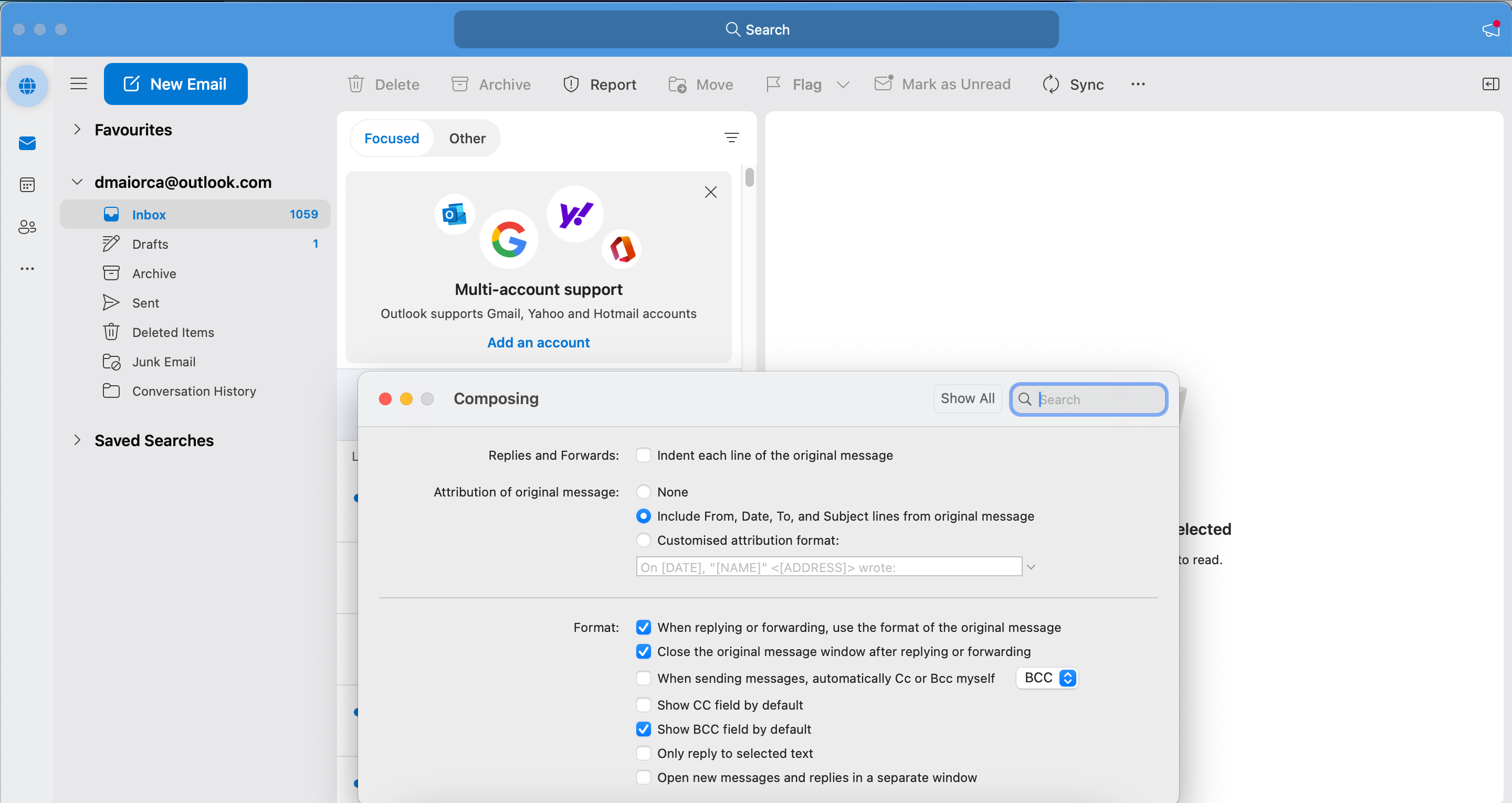
- Hit the x button when you’ve finished.


On Windows:
- Go to Settings > Mail > Compose and reply.
- Tick the box next to Always show Bcc.
In some versions of Outlook on Windows, you may be able to go to Options > Bcc instead.
The steps for adding BCC email addresses are identical regardless of whether you use Windows or macOS. Here are the instructions you should follow.
- Select New Email.
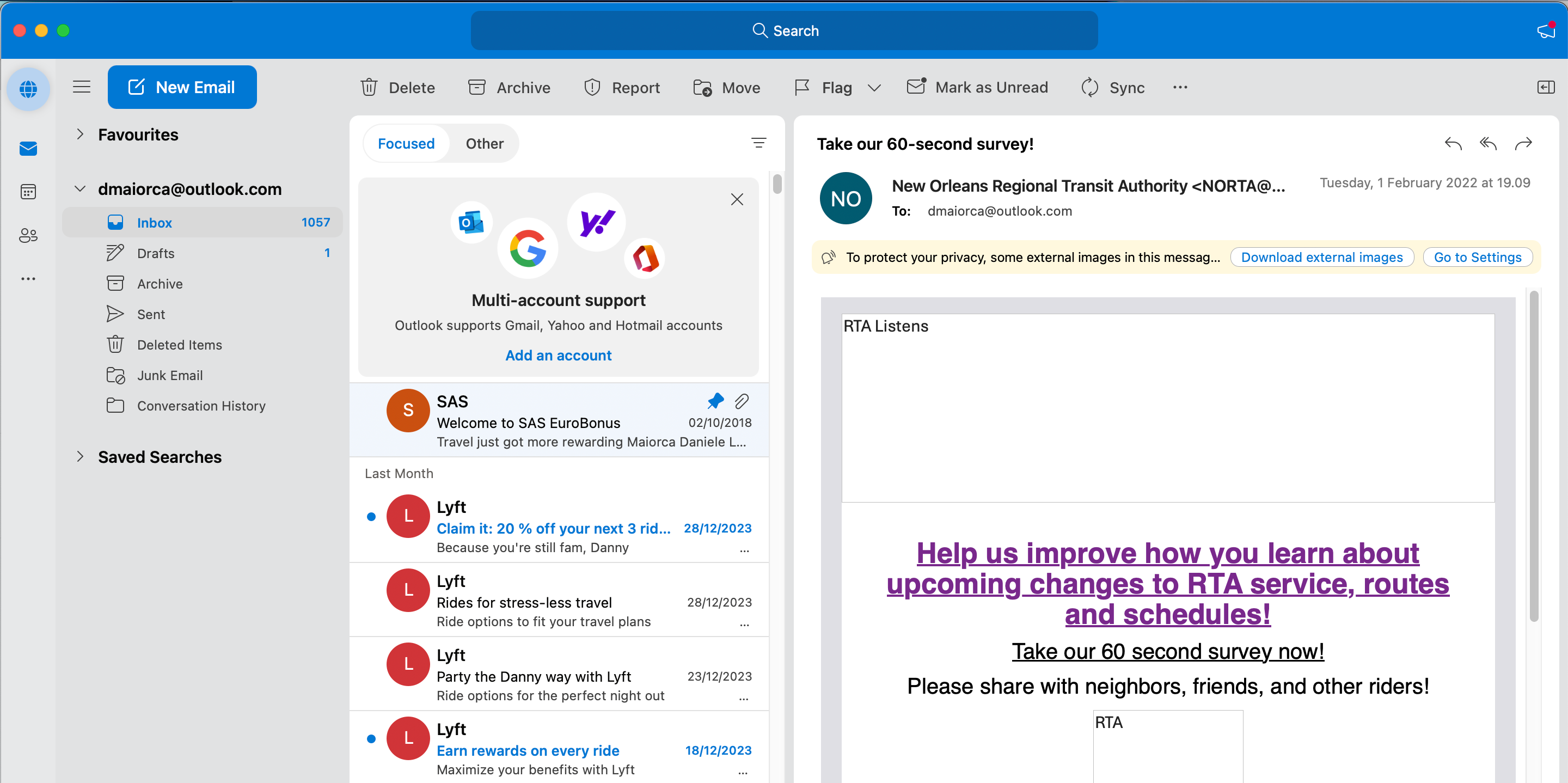
- In the Bcc tab, type your email addresses.
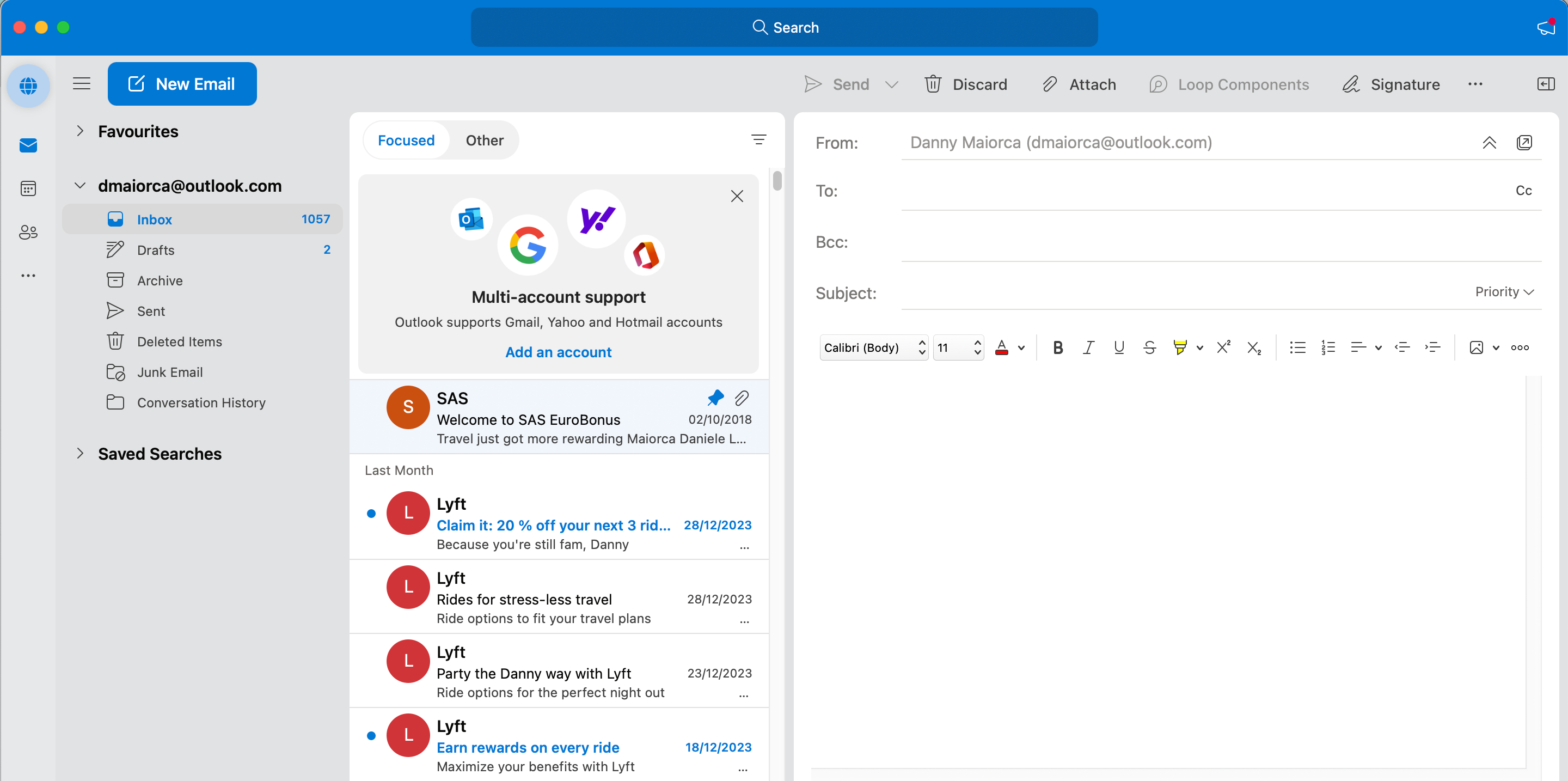
- Fill out the rest of your email and press Send when you’re done.


How to Use BCC in Outlook on Mobile
You can easily add a BCC in Outlook on your smartphone or tablet as well. Follow these instructions to do that.
- Tap New Email on your screen.
- Expand the arrow next to the To: tab.
- Enter the recipients you want to BCC in the Bcc: tab before filling in the other sections.
- Tap the Send (arrow icon) button in the bottom right-hand corner when you’re ready to send your email.
In addition to manually adding BCC email addresses, you can also automatically CC or BCC yourself in Outlook.
What Happens When You Use BCC in Outlook?
When you use BCC in Outlook, all recipients will receive your email. Each recipient will receive the specific message content exactly how someone who’s either a main recipient or CC’d would. Recipients will also be able to reply to you, but unlike emails where you use CC, they will not be able to include all of the other BCC’d recipients in their message.