
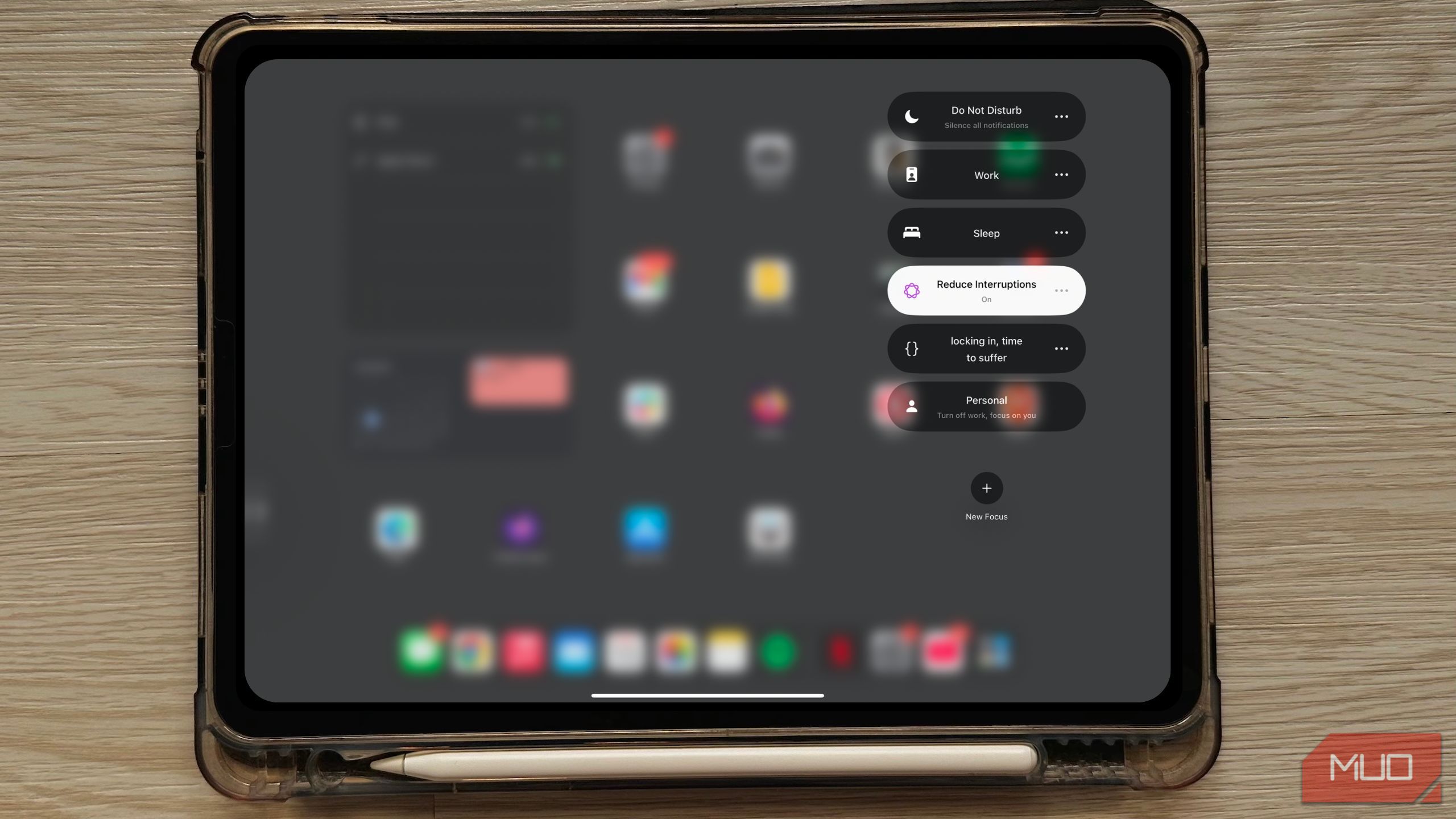
This Is the Only Apple Intelligence Feature I Actually Use
While Apple Intelligence may offer plenty, like Image Playground and Writing Tool, these aren’t features you’d use on a typical Tuesday. However, there’s one Apple Intelligence feature I catch myself using every single day.
What Is “Reduce Interruptions” in Focus Mode (and Why It’s Great)
Whether you’re using a preset or a custom Focus mode, both help you silence notifications on your iPhone or Mac and concentrate. While you can configure these Focus modes to let notifications from specific contacts and apps through, there’s always the chance you might forget someone and an important notification could slip through the cracks.
That’s why the Reduce Interruptions Focus mode introduced with Apple Intelligence is perfect and helps minimize how often such situations occur. It uses a feature called Intelligence Breakthrough & Silencing, which relies on AI to determine whether a notification is important.
If it’s deemed urgent, you’ll be alerted. Otherwise, it’ll be silenced. For instance, I received a notification from my mom saying she was on her way to the hospital. It was marked as Maybe Important, so I was notified.
On the other hand, notifications from apps like Netflix, such as alerts about new releases, were automatically silenced.
What makes the Reduce Interruptions Focus mode so great is that you no longer have to stress about constantly customizing your Focus mode settings or manually deciding who or what can notify you. Instead, you can rely on your device’s AI to determine what truly needs your attention and what can wait.
How to Activate “Reduce Interruptions”
Since the Reduce Interruptions Focus mode relies on Apple Intelligence to filter notifications, your device needs to be compatible with Apple Intelligence.
This feature works on iPhones with the A17 Pro chip or later, iPads with an A17 Pro or M1 chip or later, and Macs with the M1 chip or later. If your device is compatible with Apple Intelligence, ensure it’s running iOS 18.1, iPadOS 18.1, or macOS Sequoia 15.1 (or later versions).
Once you’ve sorted all that, make sure you’ve enabled Apple Intelligence on your device. To do so, head to Settings on your iPhone or iPad or System Settings on your Mac, then select Apple Intelligence & Siri. Next, hit Turn On Apple Intelligence.

Since the Reduce Interruptions Focus mode works like any other Focus mode, activating it is fairly simple. On an iPhone or iPad, swipe down from the upper-right corner of your screen to access your device’s Control Center. Then, tap Focus, and select Reduce Interruptions.


You can do the same on your Mac by clicking the Control Center icon in the menu bar, selecting Focus, and choosing Reduce Interruptions.

You can also customize the mode the same way you would with any other Focus mode. Go to Settings > Focus > Reduce Interruptions on your iPhone or iPad.


Similarly, on Mac, go to System Settings > Focus > Reduce Interruptions.

From there, you can decide which people and apps can bypass the mode (even if their notifications aren’t urgent), set it to turn on automatically at specific times, locations, or while using certain apps, and add Focus Filters to tweak how apps and your device behave.
Turn Another Focus Mode Into “Reduced Interruptions”
If you’re like me and already have custom Focus modes set up, the best part is that you can make them behave just like the Reduce Interruptions mode.
Go to Settings > Focus, select your desired Focus mode (or System Settings > Focus on a Mac), and toggle on Intelligence Breakthrough & Silencing.

The Reduce Interruptions Focus mode mostly does an exceptional job of filtering notifications and determining urgent ones. However, there have been a few instances where notifications I wouldn’t classify as urgent have slipped through.
This is no surprise since AI is doing all the work! Still, it’s been a game-changer for me, and if there’s any Apple Intelligence feature I’d recommend enabling, it’s this one.